

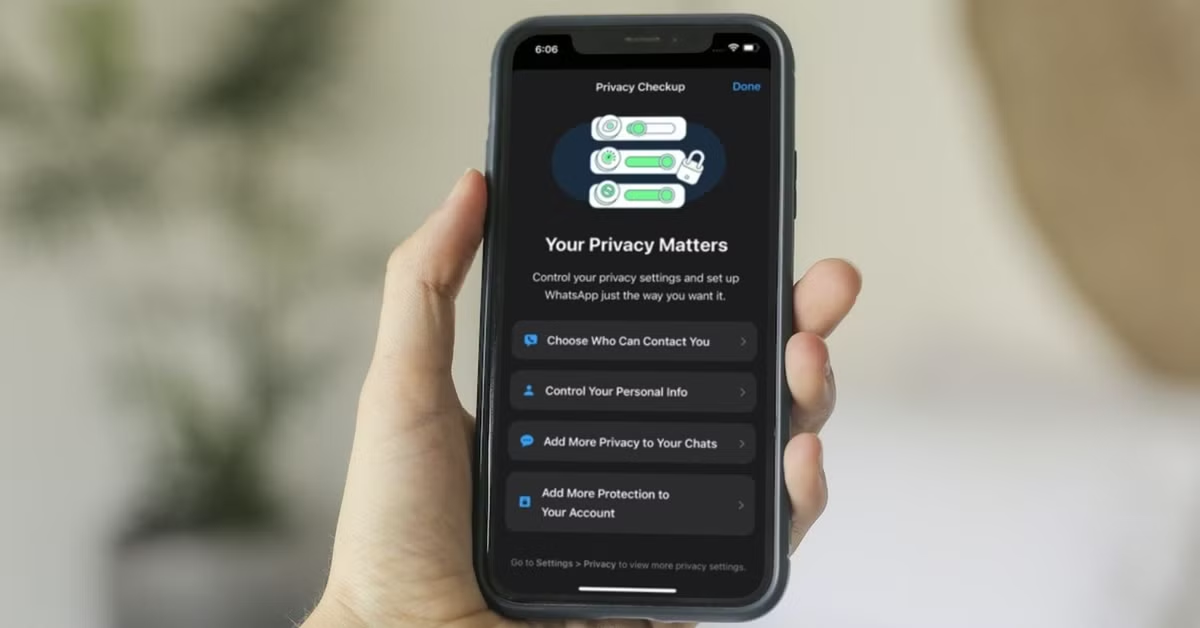
WhatsApp has become an essential communication platform for personal and professional conversations. While many people use it primarily on their smartphones, the web version makes messaging from a computer much easier. With WhatsApp Web, users can send messages, share files, view conversations, and manage chats directly from a desktop browser. The login process is simple and takes only a few moments when your phone and computer are connected to the internet.
What Is WhatsApp Web?
WhatsApp Web is a browser-based version of WhatsApp that allows users to access their existing account from a computer. Instead of creating a separate account, it connects with the WhatsApp account already active on your smartphone. Your chats and conversations can then be accessed through the browser, making it convenient for people who spend considerable time working on a laptop or desktop.
The service is especially useful for office workers, students, freelancers, and business owners who regularly switch between their phones and computers. How to log in to WhatsApp Web A physical keyboard can also make writing longer messages faster and more comfortable.
Requirements Before Logging In
Before starting the login process, make sure you have a working smartphone with WhatsApp installed and an internet-connected computer. You should also use a supported and updated web browser. Keeping WhatsApp updated on your phone can help prevent compatibility and connection problems.
A stable internet connection is recommended during the initial setup. Although the linked-device system is designed to keep your account accessible, your phone should still be active and properly connected when setting up the connection.
Steps to Log In to WhatsApp Web
To begin, open a browser on your computer and visit the official WhatsApp Web page. You will see a QR code displayed on the screen. This code is used to securely connect your computer with your WhatsApp account.
Next, open WhatsApp on your smartphone. On Android devices, tap the three-dot menu and select the option for linked devices. On iPhones, open WhatsApp settings and select Linked Devices. Choose the option to link a new device.
Your phone will open a QR-code scanner. Point the camera toward the QR code displayed on your computer screen. After the code is successfully scanned, WhatsApp will connect your account to the browser.
Once the connection is complete, your conversations should appear on the computer. You can now send and receive messages, share documents, and use many of the familiar WhatsApp features from your desktop.
Managing Linked Devices
WhatsApp allows users to review devices connected to their account. This is an important security feature because you can check whether your account is currently connected to a computer you recognize.
If you use a shared or public computer, always check your linked devices after finishing your session. You can remove an unfamiliar or unwanted device from the Linked Devices section on your phone. This helps prevent other people from accessing your conversations.
Common Login Problems
Sometimes users may experience problems while trying to connect. A QR code may fail to scan because of poor lighting, an outdated application, or an unstable internet connection. Refreshing the browser and reopening WhatsApp can often resolve temporary issues.
If the connection still does not work, update WhatsApp and your browser to their latest available versions. Also make sure your phone has sufficient internet access and that the computer is connected properly.
Security Tips for WhatsApp Web
Security should always be considered when using WhatsApp Web login on a computer. Avoid scanning QR codes displayed on suspicious websites or shared by unknown people. Only connect your account to computers that you trust.
When using a public or shared computer, log out after completing your work. Regularly reviewing linked devices can also help you identify unexpected connections quickly.
Conclusion
Logging in to WhatsApp Web is a straightforward process that connects your smartphone account with a computer browser. By scanning the QR code through the Linked Devices feature, you can quickly access your chats and continue conversations from a larger screen. Following basic security practices and checking connected devices regularly can make your desktop messaging experience both convenient and secure. For anyone who frequently works on a computer, WhatsApp Web provides a practical way to stay connected without constantly switching between devices.